
Data queries
The Data Queries extension allows users to create reusable dynamic queries that can be used across the platform.
The feature is accessible from the left navigation menu under:
Application extensions → Data queries
Data queries are mainly used for:
- Dynamic reports datasources
- Workflow data retrieval
- Excel exports using workflow actions
- Reusable filtered datasets
The query engine allows users to define:
- Principal tables
- Joined tables
- Recursive joins
- Selected fields
- Query filters
- Sorting rules
Query overview
A data query represents a configurable dataset generated dynamically from platform entities and relational data.
Each query can:
- Select data from one or multiple tables
- Filter results
- Sort returned rows
- Limit row count
- Expose parameters to end users
Queries are reusable and can be attached to:
- Reports
- Workflow actions
- Data exports
- Custom platform extensions
Query list
The query list page displays all configured queries available in the platform.
Typical actions include:
- Create a new query
- Edit existing queries
- Test query execution
- Reuse queries in reports and workflows
Query configuration
The query editor allows users to configure all aspects of the query.
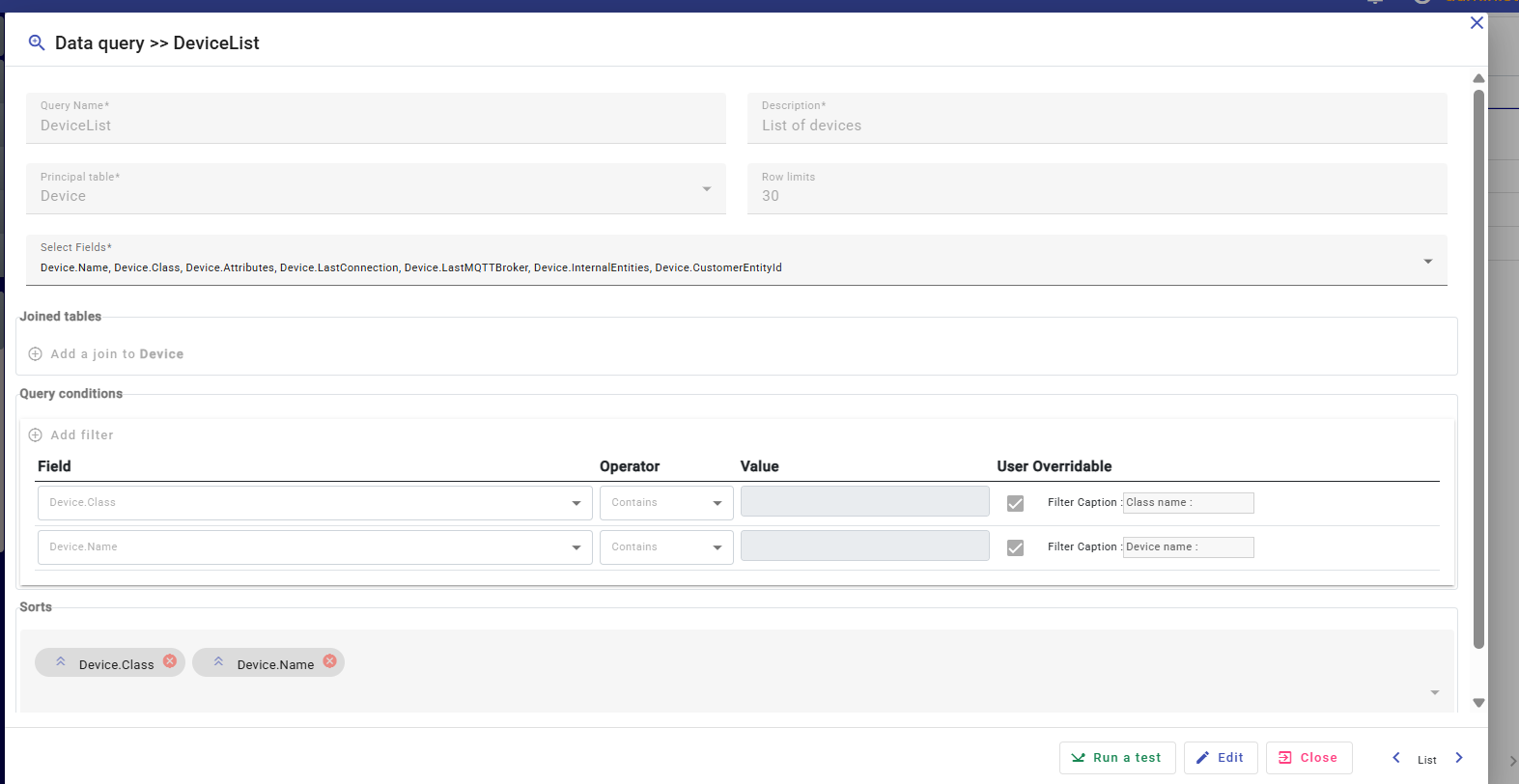
Main configuration fields:
| Field | Description |
|---|---|
| Query name | Unique query identifier |
| Description | Human readable description |
| Principal table | Main source table |
| Row limits | Maximum number of returned rows |
| Select fields | Fields returned by the query |
Principal table
The principal table defines the main datasource of the query.
Examples:
- Device
- Alarm
- KPI
- Customer
- Workflow execution
The selected table becomes the base entity used for:
- Field selection
- Joins
- Filters
- Sorting
Selecting fields
The Select Fields section allows users to define which fields are returned by the query.
Examples:
Device.NameDevice.ClassDevice.LastConnectionDevice.Attributes
Only selected fields are included in:
- Report datasets
- Workflow outputs
- Exported Excel files
Selecting only required fields is recommended for better performance.
Joined tables
Queries support joins between related tables.
The Joined tables section allows users to:
- Add related tables
- Navigate relationships
- Extend accessible fields
- Build complex datasets
Supported capabilities include:
- Standard joins
- Recursive joins
This makes it possible to create advanced queries spanning multiple related entities.
Example use cases:
- Devices with customer information
- Alarms with device metadata
- KPI results with organizational hierarchy
Query conditions
The Query conditions section defines filtering rules applied to the query.
Each filter contains:
- Field
- Operator
- Value
Typical operators:
- Equals
- Contains
- Greater than
- Less than
- Starts with
Filters help restrict returned data and improve dataset relevance.
User overridable filters
Filters can be configured as:
- Fixed filters
- User overridable filters
Fixed filters
Fixed filters are always applied and hidden from end users.
These filters are useful for:
- Security restrictions
- Tenant isolation
- System-level filtering
- Internal report logic
User overridable filters
User overridable filters allow end users to provide criteria dynamically when generating reports or executing exports.
For each overridable filter, administrators can configure:
- Default value
- Filter caption displayed to the user
Example:
Class nameDevice name
This enables the creation of reusable and interactive reports.
Sorting data
The Sorts section defines the ordering of returned rows.
Users can:
- Add multiple sort fields
- Configure ascending or descending order
- Reorder sort priority
Example:
- Sort by device class
- Then sort by device name
Sorting improves readability and report organization.
Row limits
The Row limits field defines the maximum number of rows returned by the query.
This helps:
- Improve performance
- Avoid excessive dataset generation
- Optimize report execution
- Reduce export size
Testing queries
The query editor includes a Run a test action.
This feature allows users to:
- Validate query configuration
- Verify joins and filters
- Preview returned data
- Detect configuration issues
Testing queries before using them in reports or workflows is recommended.
Integration with reports
Data queries are the primary datasource mechanism used by the Reports editor.
A report can bind to a query and use returned datasets to:
- Display field values
- Build tables
- Generate KPIs
- Create dynamic summaries
Combined with the Reports editor and Scriban engine, data queries provide powerful dynamic reporting capabilities.
Integration with workflows
Queries can also be used inside workflows to retrieve data dynamically.
Typical use cases:
- Export datasets to Excel
- Generate scheduled reports
- Retrieve filtered operational data
- Feed automation actions
The Export data workflow action commonly uses data queries as datasource input.