
Reports editor
The Reports editor extension allows users to create customizable reports using a visual drag & drop designer.
Reports can display data coming from platform datasets and dynamic queries, and can be exported or generated for operational and analytical purposes.
The feature is accessible from the left navigation menu under:
Application extensions → Reports editor
Reports are built using:
- A visual editor based on GrapesJS
- A template rendering engine powered by Scriban
- Dynamic datasets provided by the platform query system
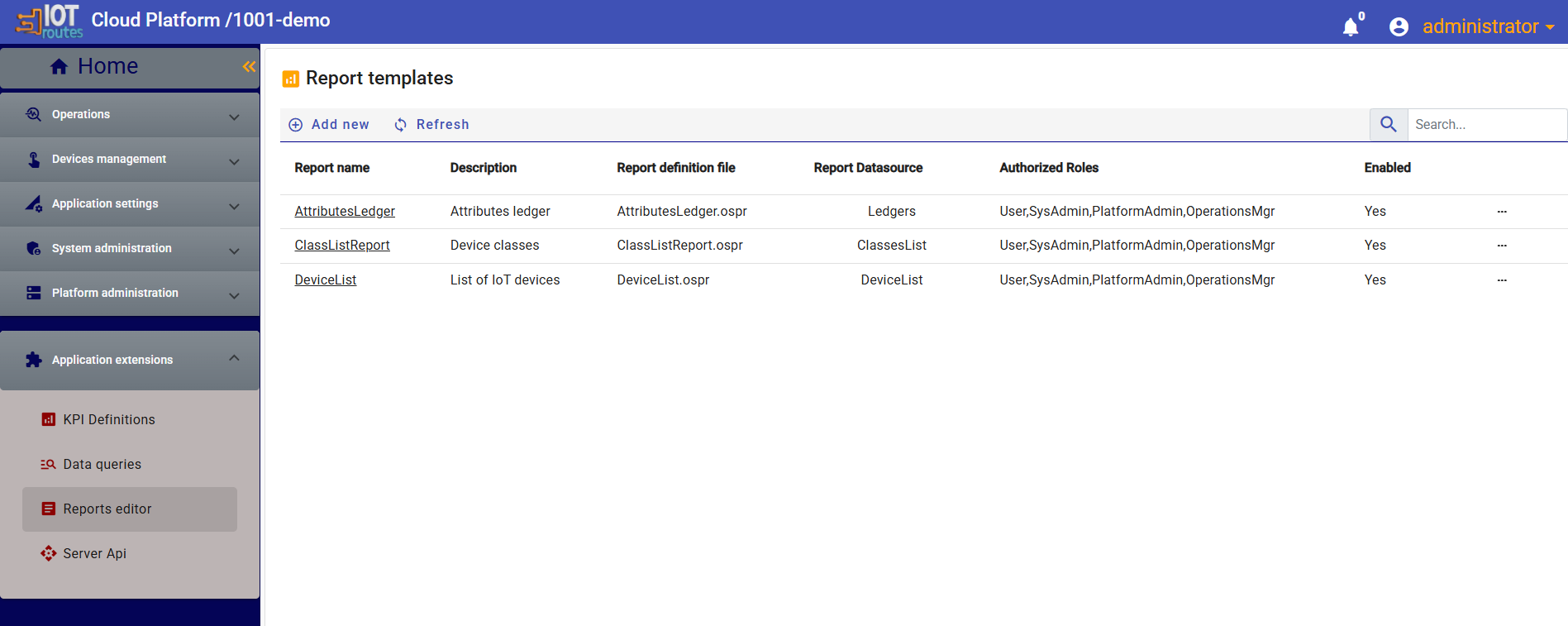
Reports templates
The reports list page displays all available report templates configured in the platform.
Each report definition contains:
- Report name
- Description
- Report datasource
- Report definition file
- Authorized roles
- Status (enabled / disabled)
Typical actions:
- Create a new report
- Edit an existing report
- Open the report designer
- Test report generation
- Enable or disable a report
Report datasources are based on the Dynamic Queries feature.
See the dedicated section for more information about creating dynamic queries.
Report configuration
The report detail page allows administrators to configure the report behavior and associated metadata.
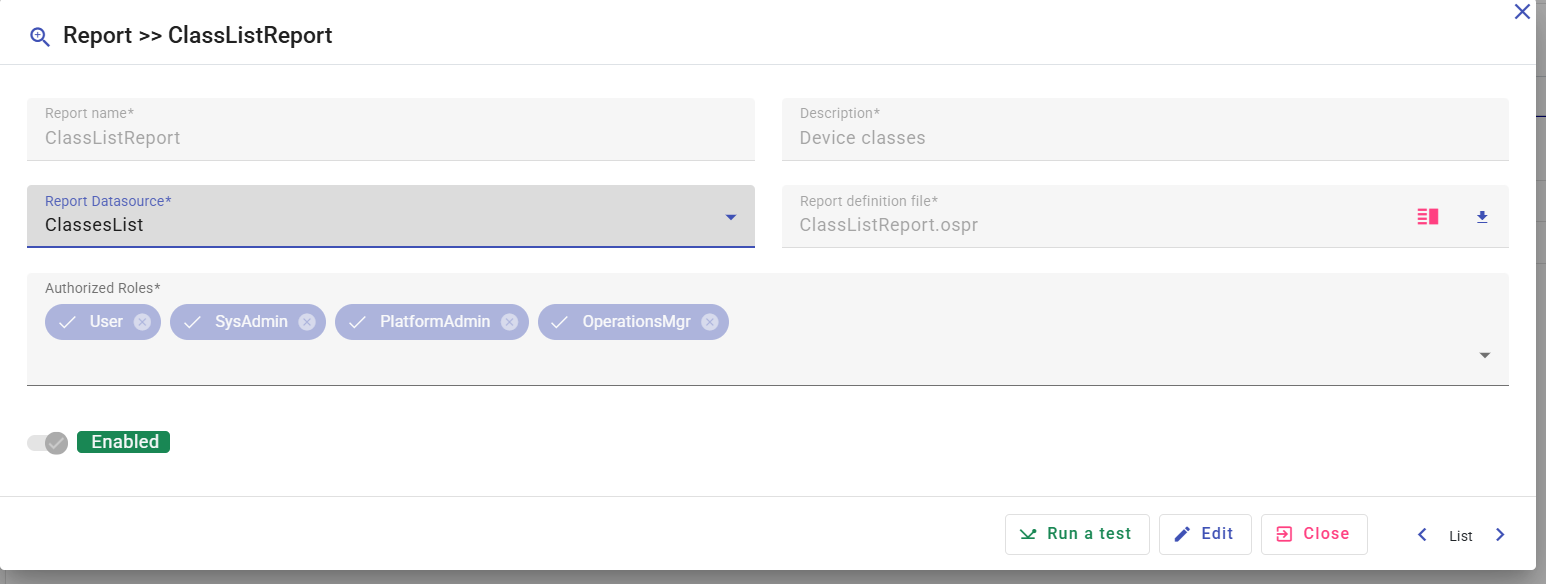
Available configuration fields include:
| Field | Description |
|---|---|
| Report name | Unique report identifier |
| Description | Human readable description |
| Report datasource | Dataset or dynamic query used by the report |
| Report definition file | Report template file |
| Authorized roles | Roles allowed to generate the report |
| Enabled | Activates or disables the report |
The detail page also provides actions to:
- Open the visual editor
- Run a test generation
- Download the report definition file
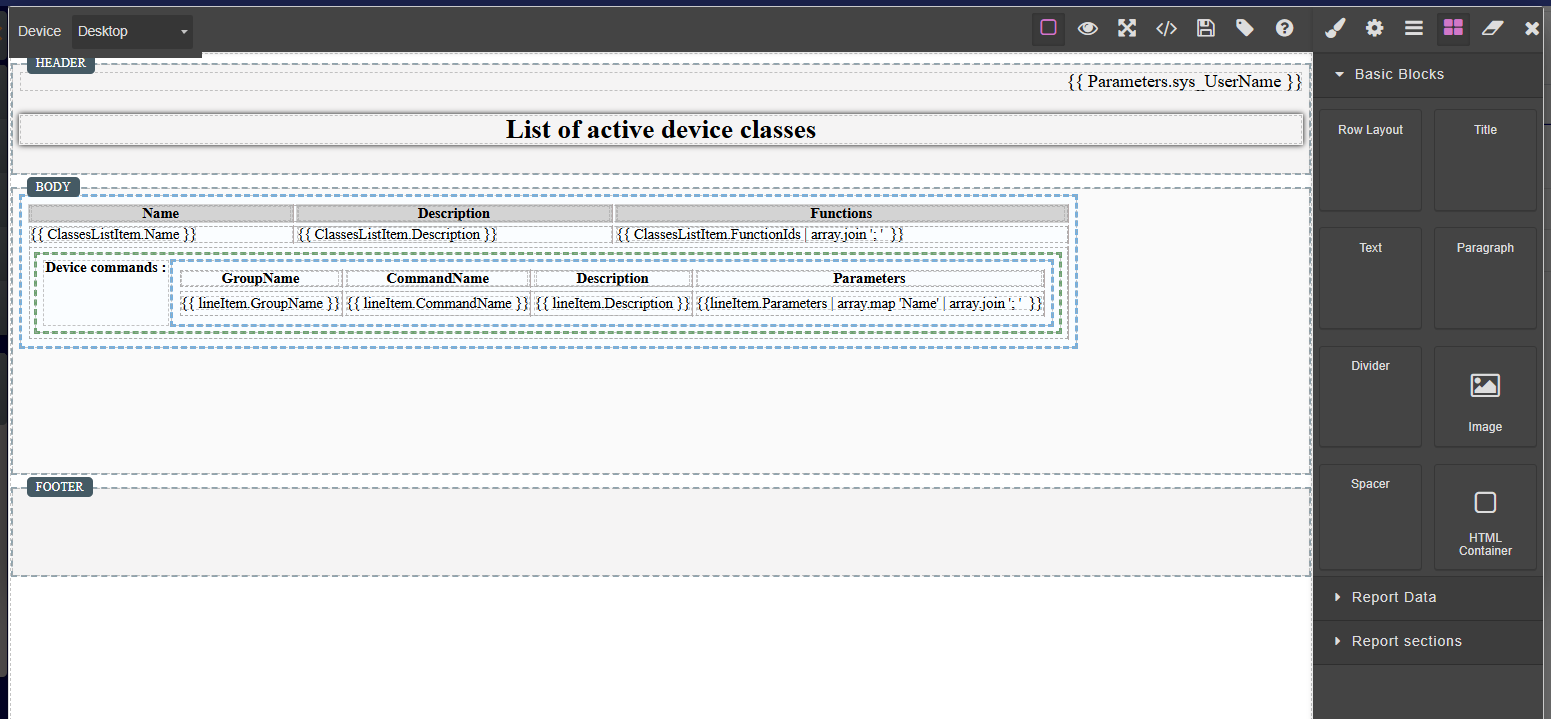
Visual report designer
The visual designer allows users to create reports without writing HTML manually.
The editor is based on GrapesJS and uses a drag & drop approach.
Users can:
- Create page layouts
- Add titles and paragraphs
- Display data fields
- Create tables from datasets
- Organize content using rows and columns
- Add dynamic expressions and formulas
Building report layouts
The editor provides layout blocks that help structure the report content.
Common layout blocks:
- Row
- Column
- Section
- Title
- Paragraph
- Text
These blocks can be combined to create:
- Dashboard-like reports
- Printable operational reports
- Device summaries
- KPI reports
- Data exports
Working with report data
Field value blocks
The FieldValue block displays a single value coming from the selected dataset.
After adding the block:
- Select the dataset
- Choose the field name
- Configure optional aggregation behavior
Supported aggregations include:
- First
- Last
- Sum
- Average
- Count
Example use cases:
- Latest device status
- Total energy consumption
- Average sensor value
Field blocks
The Field Block component displays:
- A label
- A value
Example:
Customer Name : John DoeTemperature : 25°C
This block is useful for:
- Device information sheets
- Summary reports
- Structured operational forms
Dataset tables
The Dataset Table block displays multiple rows of data as a table.
Users can:
- Select the dataset
- Add or remove columns
- Reorder columns
- Customize displayed values
Typical use cases:
- Device lists
- Alarm history
- Measurements history
- KPI reports
Scriban template engine
The report engine uses Scriban as the template rendering engine.
Scriban provides:
- Variable rendering
- Conditions
- Loops
- String manipulation
- Date formatting
- Array operations
- Mathematical functions
This allows advanced users to create dynamic report behaviors and advanced formatting logic.
Example capabilities:
- Conditional sections
- Dynamic calculations
- Data transformations
- Advanced formatting rules
Advanced expressions
Scriban expressions can be used inside report components to implement advanced logic.
Examples:
- Conditional rendering
- Dynamic text generation
- Formatting dates and numbers
- Aggregating values
- Manipulating arrays and strings
Scriban also includes many built-in utility functions for:
- Arrays
- Strings
- Dates
- Mathematical operations
For full syntax and function reference, see:
Testing reports
The report detail page includes a Run a test action.
This feature allows users to:
- Validate datasource configuration
- Preview generated output
- Verify expressions and formulas
- Detect layout or rendering issues
Testing reports before deployment is recommended, especially when using advanced Scriban expressions.
Security and authorization
Each report can be restricted using authorized roles.
Only users having one of the configured roles can:
- Access the report
- Generate output
- Open the designer
- Modify report configuration
This allows secure separation between operational, administrative, and business users.